Optical connection
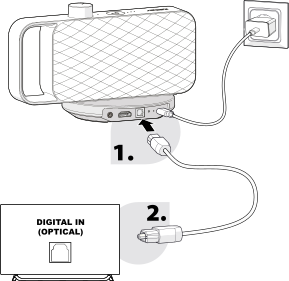
- Remove the protective caps from both ends of the optical audio cable .
Note:
Handle the cable carefully and avoid sharp bends, as this may damage the cable or affect audio transmission.
- Connect one end of the optical audio cable to the DIGITAL IN connection on the back of the base station .
- Connect the other end of the optical audio cable to your TV's optical audio output.
Note:
Insert the plug carefully until it is fully seated. Do not use force when connecting the cable.
- Open your TV's audio settings and set the sound output to the OPTICAL connection.
- Set the digital audio output format to PCM. If the digital audio output is not set to PCM, OSKAR easy may not play any sound.
Setting PCM on the TV
The following video shows you how to set PCM on your TV.
Please note: This video shows the first OSKAR model. The PCM setting shown also applies to OSKAR easy.
Note:
Depending on the TV manufacturer and model, the term “PCM Stereo” or a similar name may be used. For more information on adjusting your TV's settings, please refer to your TV's user manual.
With an optical connection, the TV's built-in speakers usually remain active, which may cause an echo between OSKAR easy and TV sound.
Therefore, disable the built-in speakers in your TV's sound settings (audio output selection, for example “External speakers” or “Off”). The optical output, and therefore the signal for OSKAR easy, is unaffected.
If your TV does not allow these settings to be adjusted separately, reduce the TV volume instead. Remember to reactivate the sound when you want to listen through the TV speakers later.